


SecureClean — Phone Cleaner
4.221.00 Reviews
App Specs
- Version
- V1.0.3
- Updated On
- License
- Free
- Downloads
- 1,000,000+
- Developer
- CN CodeHub
- Categories
- Tools
- Platform
- Android
Screenshots
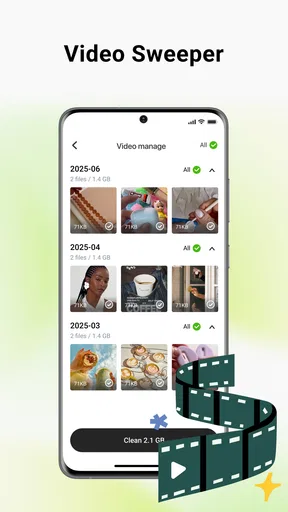
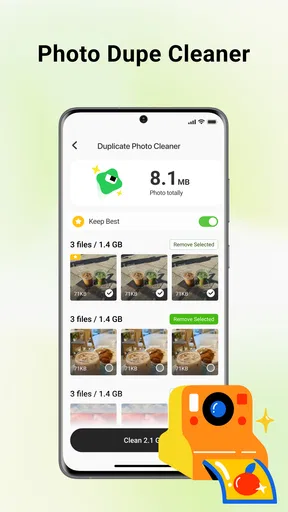
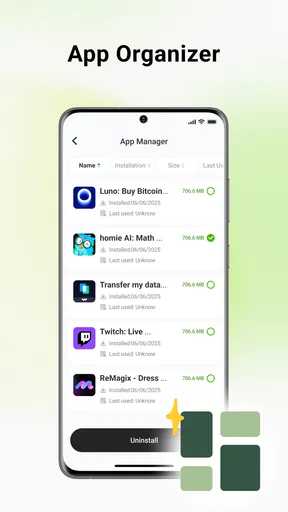
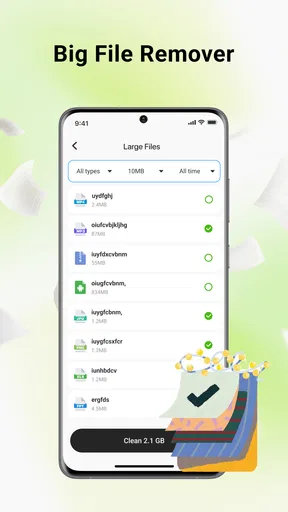
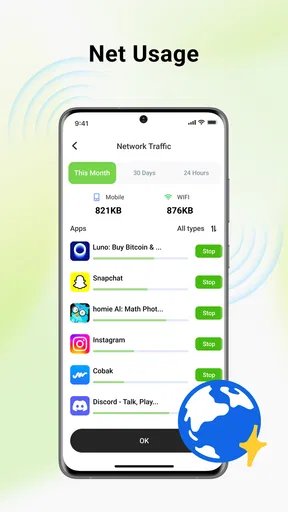
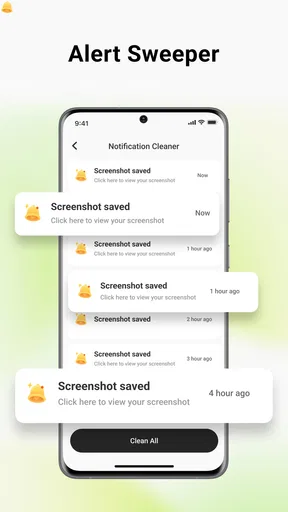
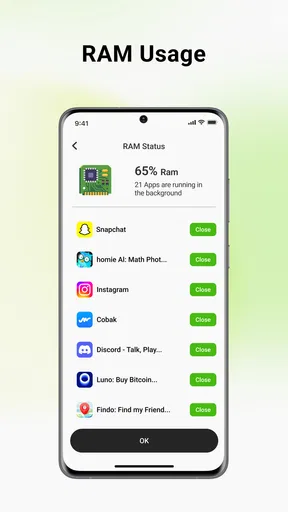
 Analysis by AppCompare
My first impression of SecureClean was that it aims to solve a very ordinary phone problem: the slow buildup of photos, videos, downloads, and miscellaneous files that make storage harder to manage. It is a free Android tools app from CN CodeHub, presented under the short label “SecureClean,” and its purpose is easy to understand without a long learning curve. I found the experience most useful when I treated it as a regular housekeeping tool rather than a magic speed booster.
The app is listed as SecureClean — Phone Cleaner, and that name describes the practical focus well. Instead of asking me to reorganize every folder manually, it gives the cleanup task a more approachable shape. That matters on a phone used for messaging, camera work, social apps, and repeated downloads, where clutter tends to arrive in small pieces and becomes difficult to notice until storage is already tight.
What makes this cleaner worth considering is not a promise of dramatic performance changes. Its value is in helping me identify what deserves attention, decide what can go, and keep personal files from becoming an unmanageable pile. That makes it a better fit for someone who wants a simple maintenance routine than for a technical user searching for deep system controls.
How SecureClean fits into everyday phone maintenance
I find SecureClean most useful when I give cleanup a clear purpose instead of treating it as a catch-all fix. In this section, I’ll focus on how a small, deliberate review can fit around ordinary phone use and help me avoid rushed decisions. That routine also makes it easier to see where the app hands the task back to me.
A useful first pass when storage feels crowded
When my phone starts warning me about limited space, I usually do not need another complicated dashboard. I need a clear way to inspect the material that accumulated without much thought. SecureClean is built around that situation, bringing photos, videos, and files into the same cleanup conversation.
The sensible way to use it is to begin with review rather than immediately removing everything suggested. Old screen recordings, duplicate-looking images, forwarded clips, and forgotten downloads can look similar at a glance, but they do not have the same value. A photo from a family event may sit beside several disposable screenshots, so a careful pass remains important even when the app makes the list easier to navigate.
I especially like the idea of using it after a busy week rather than waiting for an emergency. A short review after traveling, attending an event, or downloading several documents is less stressful than trying to recover space while installing an important update. This turns a cleaner into a habit tool: small decisions made regularly instead of one large, risky purge.
Worth Reading Before You Choose

EA SPORTS FC Mobile 26 Is a Bigger Football Game, but It Takes Time

Flipboard Shows What News Apps Must Do Beyond the Feed

Switching to Android Auto Means Rethinking Your Driving Routine

Google Calendar Makes a Crowded Week Easier to Manage

Ludo King Makes the Most of the Minutes Between Plans

Baby Panda World Brings Quick Play to Modern Phones, but Its Game Library Feels Busy
Where connectivity changes the experience
Connectivity is not the headline feature here, but it still shapes when the app feels convenient. My phone is often connected when I am sorting clutter at home, yet the files being reviewed may have arrived through messaging apps, cloud services, browsers, or social platforms. The cleanup decision therefore sits at the end of a chain that depends on how I use the device online.
A practical example is a group chat that produces a stream of images and short videos. I may want to keep the conversation while removing local copies that no longer matter. SecureClean can be useful at that point because it focuses attention on the stored media rather than forcing me to remember which app originally delivered each item. I still need to check whether a file is a unique copy before deleting it, especially if it is not backed up elsewhere.
The same caution applies to cloud-based habits. If a photo appears on the phone and also exists in an online library, I may feel comfortable removing the local copy, but that confidence should come from my own backup setup, not from the cleaner alone. A storage tool can help me find candidates; it cannot replace knowing where my important memories and documents actually live.
Using it in mobile situations
SecureClean makes the most sense in situations where a phone has become cluttered through normal movement. After a holiday, I might have several versions of the same scene, temporary maps, downloaded tickets, and videos shared by friends. Before a long journey, I might need room for new camera footage or offline media from another app. In both cases, the app can serve as a preparation step rather than an emergency rescue.
I would avoid doing a major cleanup while distracted in a queue or while rushing between appointments. A small screen encourages quick taps, and a file that looks unimportant may be needed later. For mobile use, my preferred workflow is to review one type of content at a time, pause when a file is unclear, and leave anything connected to work, travel, identity, or family until I can verify it properly.
That approach also helps with limited attention. Instead of opening the app with the vague goal of “cleaning the phone,” I would choose one task: inspect large videos, review old downloads, or remove disposable screenshots. A narrow objective reduces accidental deletion and makes it easier to stop when the useful work is finished.
What happens when a cleanup decision goes wrong
The biggest limitation of any file-cleaning workflow is the human decision in the middle. A tidy list can create false confidence. Similar thumbnails may represent different moments, and a document with an unhelpful filename may be more important than a clearly named file. I therefore treat every removal suggestion as a prompt to inspect, not as an instruction.
Before using the app for a serious cleanup, I would protect irreplaceable material through my normal backup routine. That is particularly important for camera photos, scans, recordings, and documents received through messaging apps. If I accidentally remove something, the recovery path depends on where that file was stored and whether another copy exists; a cleaner should not be treated as a substitute for a recycle bin or backup service.
When a result does not look right, my recovery method is simple: stop the cleanup, reopen the relevant source app, and check whether the original remains available there or in a trusted backup. I would also avoid repeating the same scan immediately if the phone is busy or storage information appears incomplete. Closing and reopening the app, checking the device’s own storage view, and reviewing the selected items again are more sensible than tapping through uncertainty.
This is where SecureClean feels more like a decision aid than a complete storage-management system. It can make the inspection stage less tedious, but it does not remove the need for judgment. Users who expect one-tap deletion with guaranteed restoration may find that expectation uncomfortable.
Being careful with personal and sensitive files
Cleaning a phone is also a data-conscious activity. Photos, videos, and documents can reveal much more than their filenames suggest. I would not hand the task over casually when the selection includes identification documents, medical records, private conversations, or work material. The safest routine is to review visible context, retain anything with unclear importance, and delete in small groups.
I also prefer to clean by source and purpose. For example, temporary screenshots can be handled separately from family photos, while downloaded documents deserve their own review. This separation makes it easier to notice a mistake and easier to explain later what was removed. It also prevents the common error of judging every file only by age.
For people who are careful about mobile data, the app should be used at a convenient time rather than opened repeatedly while traveling. The cleanup itself concerns local storage, but the surrounding workflow may involve checking cloud copies, browsing source apps, or restoring items from online services. I would use a stable connection for any backup verification and avoid assuming that a file is safely preserved simply because it was once visible in an online app.
Another useful habit is to keep the phone’s own storage screen nearby as a reference. If SecureClean suggests that a category needs attention, the system settings can provide a second perspective on overall space. The two views do not need to match perfectly to be useful; together, they help distinguish a genuinely large media collection from a smaller group of files that merely feels prominent.
Who will appreciate it most
I see SecureClean working best for casual Android users who want a friendlier cleanup routine than manually opening folders. It is also suitable for people who take many photos, receive frequent media in chats, or download files for short-term use and then forget about them. The Everyone content rating makes its intended audience broad, while support for Android 7.0 and later covers a wide range of devices.
Its free price lowers the barrier to trying it, and the app has reached over a million installs with a 4.2 average from around 1,700 ratings. Those figures suggest that the basic idea has found a substantial audience, although they do not tell me whether every user has the same storage habits or expectations.
I would be more cautious about recommending it to someone who already has a carefully managed photo library, a strict enterprise device policy, or a strong preference for using only built-in system tools. If the phone’s existing storage manager already provides the exact review controls needed, adding another utility may not improve the routine. Likewise, users who want detailed technical diagnostics rather than straightforward organization may find the experience too focused on everyday cleanup.
How it compares with the usual alternatives
The closest alternative is the phone’s built-in storage manager. System tools have an obvious advantage: they are already part of the device, and they usually provide a direct view of how space is divided among apps, media, and files. They are a strong choice when I want the most authoritative device-level picture or need to manage applications rather than personal clutter.
SecureClean is more appealing when I want a focused, less technical starting point for photos, videos, and files. The trade-off is that a dedicated cleaner may simplify the decision while offering less of the broader system context I can find in settings. I would use the app to make the review approachable, then use system storage information when I need to understand the bigger picture.
Cloud photo services are another alternative, but they solve a different problem. They are better for synchronization, backup, and accessing a library across devices. SecureClean is better understood as a local organization step. I would not choose one as a replacement for the other: a cleaner can help reduce local clutter, while a backup service can protect memories before that reduction happens.
Manual file browsing remains the most flexible option for users who know exactly where their data is stored. It also demands more patience and a clearer understanding of folders. SecureClean’s advantage is convenience; manual browsing’s advantage is control. The right choice depends on whether the task is “help me find likely clutter” or “let me manage every location precisely.”
Small workflows that make the app safer
Start with disposable material, such as old screenshots or temporary downloads, before reviewing personal photos. This gives me a low-risk way to understand the app’s selection process.
Handle videos separately from images. Videos often consume more space, but their importance is also harder to judge from a small preview, so I review them with extra care.
Keep uncertain files out of the first pass. If I cannot identify an item immediately, I leave it alone and investigate it through the app that created or received it.
Use the device’s storage view after cleanup. That confirms whether the result was meaningful and prevents me from assuming that every clutter problem came from personal files.
These steps sound simple, but they address the main weakness of automated cleanup: convenience can encourage speed. The best result comes from combining SecureClean’s organization with a deliberate review habit.
Version, compatibility, and everyday expectations
The current release is V1.0.3, and I would keep expectations realistic when using a relatively focused utility. I look for a clear, understandable workflow rather than a large collection of controls that I may never use. On a compatible phone running Android 7.0 or later, the important question is whether the app helps me make better storage decisions without adding confusion.
Because the app is free, it is easy to test it against my existing routine. I would compare the categories it brings forward with what I already see in system settings, then decide whether its presentation saves enough time to keep using. That personal comparison matters more than assuming a dedicated cleaner is automatically better than the built-in option.
My main friction point is the need for continued caution. SecureClean can make clutter easier to see, but it cannot know the emotional or practical value of every photo and file. A user who wants aggressive automation may find the review process slower than expected, while a user who values control may appreciate that the final decision remains in their hands.
My connectivity verdict
SecureClean is a sensible tool for organizing the local clutter created by a connected mobile life. Its strongest use is not during a frantic low-storage warning, but as a calm checkpoint after media-heavy activities, repeated downloads, or a period of constant messaging. I like it most when I use it alongside backup awareness and the phone’s own storage information.
Connectivity affects the context around the app more than the core reason to install it. Online conversations and cloud habits create much of the clutter, yet deleting a local copy should always be based on knowing whether the original is safe elsewhere. That distinction is important: SecureClean can help me decide what to inspect, but it should not be treated as proof that every selected item is disposable or recoverable.
For a free tools app from CN CodeHub, it offers a straightforward answer to a familiar problem and is accessible to a broad audience. I would recommend it to someone whose phone feels crowded but whose files are not organized enough for comfortable manual cleanup. I would skip it if the built-in manager already handles the job well or if I need professional-grade file control.
Overall, SecureClean is most valuable as a careful cleanup companion, not a one-tap cure for every storage issue. If I approach it in small batches, verify important files, and use a reliable backup routine, it can make routine phone maintenance noticeably less frustrating.
Pros
- Quickly identifies junk files
- cached data
- and leftover installation files.
- Simple interface makes routine phone maintenance easy for beginners.
- Can help free storage space without requiring technical knowledge.
- Useful duplicate-file detection helps reduce unnecessary media clutter.
- Provides privacy-focused cleaning options for selected app data.
Cons
- Some cleaning recommendations may require careful manual review.
- Deep scans can take noticeable time on phones with large storage.
- Cleaning results may vary depending on the device and Android version.
- Certain tools or advanced features may be limited behind premium access.
- Frequent cleaner notifications could feel intrusive to some users.
FAQs for SecureClean — Phone Cleaner
What is SecureClean — Phone Cleaner used for?
SecureClean — Phone Cleaner is designed to help organize and free up storage space on a mobile device. Its tools may identify unnecessary files, duplicate or similar photos, large videos, cached data, and other items that can consume valuable space. Before confirming any cleanup, review the suggested files carefully so important photographs, downloads, documents, or app data are not removed accidentally.
Is SecureClean — Phone Cleaner safe to use?
The application can be useful for routine storage maintenance, but no cleaner should be trusted blindly. Check the categories and files selected for deletion before starting a cleanup, particularly when the app requests access to photographs, media, files, or other device information. It is also sensible to keep a current backup and install the app only from an official Android or iOS store.
Can SecureClean delete personal photos, videos, or important files?
It may be able to remove items such as duplicate images, unwanted videos, temporary files, or other content when you approve a cleanup. Because automated detection is not perfect, similar photos and large files should be inspected manually before deletion. If the app offers a review, recycle-bin, or recovery option, understand how long deleted content remains available before relying on it.
Does SecureClean improve phone speed or battery life?
SecureClean may make a noticeable difference when your device is nearly full, especially by removing unnecessary files and helping you manage large media. However, a cleaner cannot repair every performance or battery problem. Slowdowns can also result from outdated software, demanding apps, poor battery health, or limited hardware. Avoid repeatedly force-closing apps, since that can sometimes increase battery use.
Is SecureClean — Phone Cleaner free, and does it require a subscription?
The app’s available features, advertisements, trial period, and subscription terms can vary by platform, region, and version. Some cleaning tools may be free while advanced scanning, unlimited removal, privacy features, or automatic maintenance require payment. Before starting a trial, read the in-app pricing and renewal information carefully, and cancel through the relevant Google Play or App Store settings if you no longer want the subscription.


